
Frequently asked questions answered eScoring and PlayHQ
The page covers FAQs on eScoring, including the following areas:
- Allocating players and coaches,
- Scoring sessions
- Who can do eScoring and platform access
- Internet requirements
- PIN numbers
What is eScoring?
The eScoring function can be used through PlayHQ, replacing paper scoresheets.
This means that when eScoring is used, there is no need to submit a photo of the scoresheet or upload the result/top scorers to BE. Once an eScored game has been closed and synced with the internet, the result is automatically uploaded for you.
How is eScoring done?
The eScoring system can be used on any electronic device that connects to the internet. We would recommend using a laptop or tablet for the games.
The link to access the eScoring portal is here: https://be.score.playhq.com/
A BE eScoring training video is also available: https://www.youtube.com/watch?v=BUy11M3L4Hg
How do I access the eScoring platform?
The link to access the eScoring portal is here: https://be.score.playhq.com/
You can then enter your PlayHQ log in credentials and press 'log in'.
Can I do eScoring if I have poor/limited internet coverage at a venue?
An internet connection is only required to start and finish a scoring session.
A scoring session covers any games at the venue for your club on that day, either one game, or multiple.
This means if you have a venue without internet, or poor/unreliable coverage, you can still score digitally as long as you start the scoring session while you have internet at home/outside a venue, and then end it when you have internet coverage again to finish and submit the score(s).
How do I allocate players/coaches to a game?
All teams are required to have correctly allocated their players to the right team on PlayHQ. This information produces the player ID pack for the coach/team manager to check licence cards but also populates the eScoring team list.
As well as assigning players to the team, you can also add shirt numbers and assign your captain.
The shirt numbers can be changed on the day of the game by the scorer so do not worry if you have a change in number.
This PlayHQ support page also covers adding players and coaches to a game: https://support.playhq.com/hc/en-us/articles/23948414454428-How-to-e-Score-a-Basketball-Game
Who can access the eScoring Portal?
Only people set up as administrators for the club with either Full Access Admin or eScore Admin can start a scoring session.
How do I add a new eScore admin for my club?
eScore admins can be added in the same way you add other club admins in Play HQ.
Navigate to My Organisation > Admins > Click 'Invite new admin' > Select 'Electronic Scoring Admin' as the Role Type.
What can eScore admins do and access?
Electronic scoring administrators can:
- Access the electronic scoring portal (score.playhq.com)
- Set up scoring sessions for authorised venues and dates
- Manage live game scoring including team lineups, scores and events like fouls
- Finalise completed games
They cannot access other administrative functions within the main admin portal, including viewing private member data.
What is a scoring session?
A scoring session is the name given to one or multiple games all eScored as part of a day or session of basketball.
As mentioned previously, eScoring does not require an active internet connection to be performed, providing internet access is present when a scoring session is set up and when the same session is finalised.
How do I set up a scoring session in PlayHQ?
Firstly, log into the PlayHQ eScoring Portal: https://be.score.playhq.com/
Then, select Venue and Date:
-
- Choose your venue from the dropdown menu
- Select the game date you'll be scoring
- Verify the games listed match your expectations
Then, create Your Security PIN:
- Enter a memorable 4-digit PIN
- Confirm your PIN entry
- Click Start Session
Important: Remember your PIN - you'll need to share this with the scorer so they can exit the game and end the scoring session securely.
This PlayHQ support page may also be of use: https://support.playhq.com/hc/en-us/articles/23950393810972-Setting-up-an-electronic-scoring-session
What do I do once a scoring session has been set up?
Once your scoring session is set up and active:
- Review the games available for your selected venue and date
- Click on the specific game you'll be scoring (if your venue has multiple courts, select the correct one)
- The game interface will load, ready for lineup management and scoring
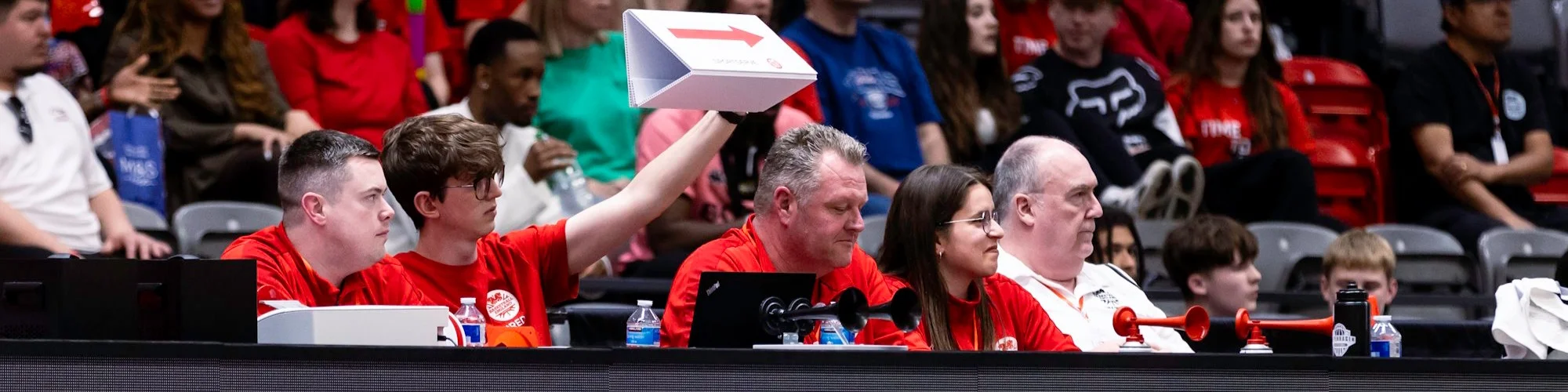
Once the scoring session has been set up you can then pass the device to the table officials to score the game.
How do I end an scoring session and finalise it?
Once all games have been scored and their results published to PlayHQ, you can end the electronic scoring session. Ending the electronic scoring session removes all game results from the device and allows you to set up a new electronic scoring session with a different venue, day/s, and PIN.
To end a session, select End Session in the top left corner of the day and court selection page. The administrator who started the scoring session will then be prompted to enter their login details to authorise the closing of the session.
To determine whether the results of all games scored on a specific device have been published to PlayHQ, navigate to the electronic scoring session, day, and court selection page.
If the game has been uploaded it will have moved to completed and have no alert icons. You can also check HoopsHQ to see if the score is on there.
If games have not been synced, or events within a game have not been synced, there will be a alert icon on the game tile and alert message on the top left of the screen.
This PlayHQ support page may also be of use: https://support.playhq.com/hc/en-us/articles/23971992121244-Ending-an-electronic-scoring-session
I've forgotten my PIN for a scoring session, what can I do?
The following PlayHQ support page should be of use: https://support.playhq.com/hc/en-us/articles/23899406630044-Resetting-a-forgotten-PIN
Is there any way to practice eScoring without doing it during a real game?
Yes.
PlayHQ has a demo eScoring platform for this purpose: https://score.playhq.com/demo